Tutorial: Debug I/O
Before continuing any further in the debugger, bring up the Debug I/O tool so you can watch the subsequent output from the program. This is also where keyboard input takes place in debug code that requests it.
Once you step over the line PrintAsText(news) you should see output similar to the following:
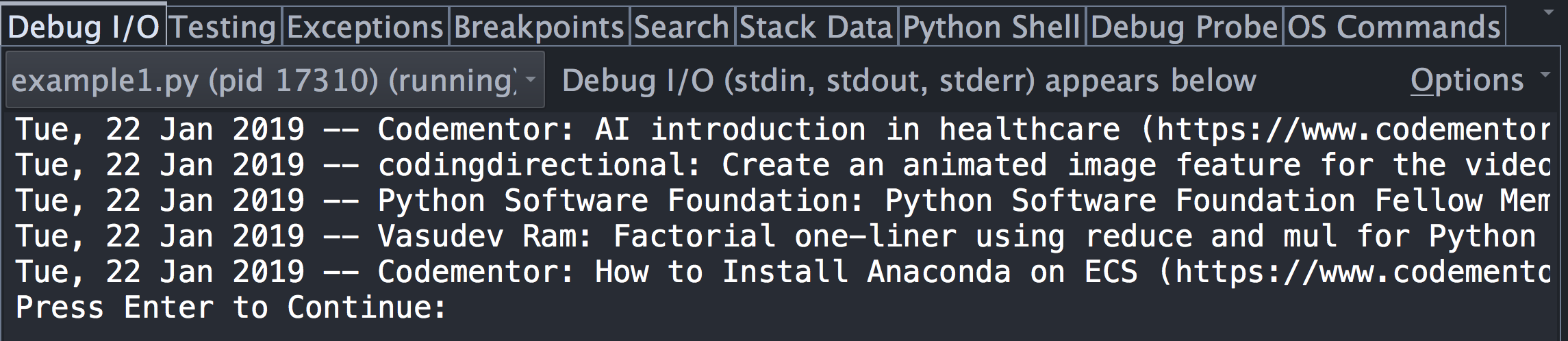
For code that reads from stdin or uses input() or Python 2.x's
raw_input(), the Debug I/O tool is where you would type input to your program. Try
this now by stepping over the PromptToContinue call with  Step Over in
the toolbar. You will see the prompt "Press Enter to Continue" appear in the Debug I/O
tool and the debugger will not complete the Step Over operation until you press
Enter while keyboard focus is in the Debug I/O tool.
Step Over in
the toolbar. You will see the prompt "Press Enter to Continue" appear in the Debug I/O
tool and the debugger will not complete the Step Over operation until you press
Enter while keyboard focus is in the Debug I/O tool.
You can also configure Wing to use an external console from the Options menu in the Debug I/O tool. This is useful for programs that requires a more complete console implementation to run correctly, for example those that use the curses module.
See Debug Process I/O for details.